Messages and calls for the story
Prepare conversations, incoming calls and notifications with the names and content the scene calls for. These are prop screens, not real messages or telephone calls.
Propp · iPhone · Apple Watch
Prepare the messages, calls and screen action the scene needs. Put an iPhone in the actor’s hand, cue each phase and reset the action for the next take.

(the screen in the shot)
For prop teams, assistant directors and crews filming a phone in shot, where the timing and continuity of a screen matter.
Set up the device, contacts, screen content and phases. Import a screenplay to review suggested screen scenes and their starting content.
Run the prop on its own or control it from another iPhone over a local connection. Use a Bluetooth clicker or the Apple Watch companion to advance cues.
Step back, reset or jump to the phase you need. Keep the same screen action ready for another angle, another rehearsal or another take.
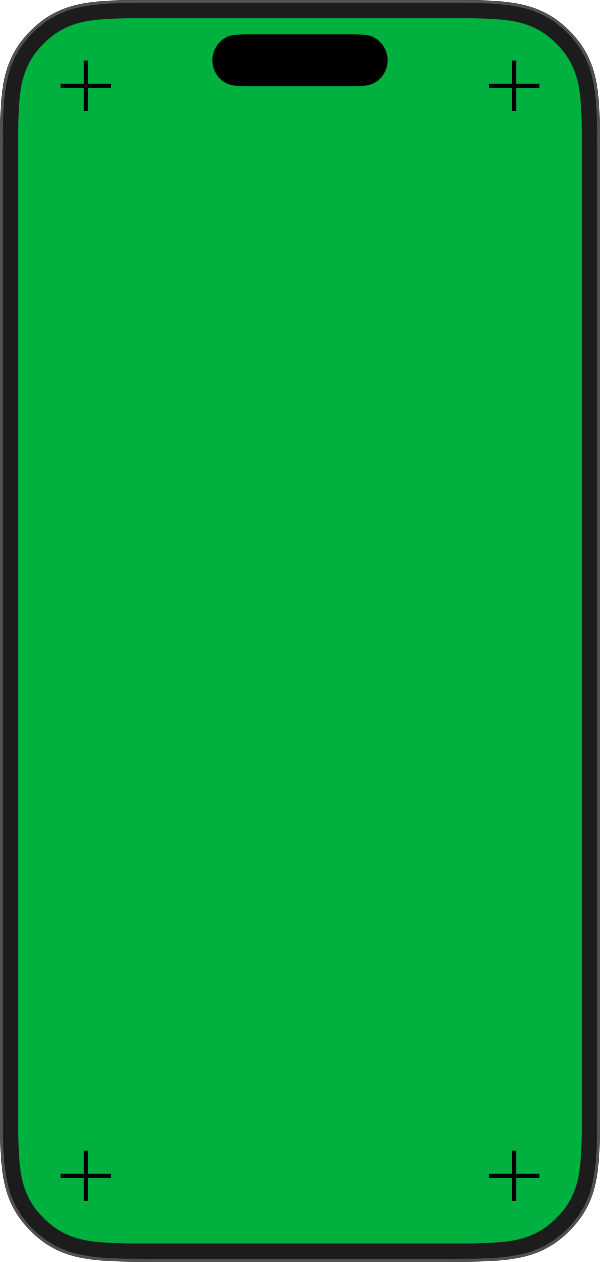
Previews from the app in development. The phone frame and on-screen controls are part of Propp’s simulated device.
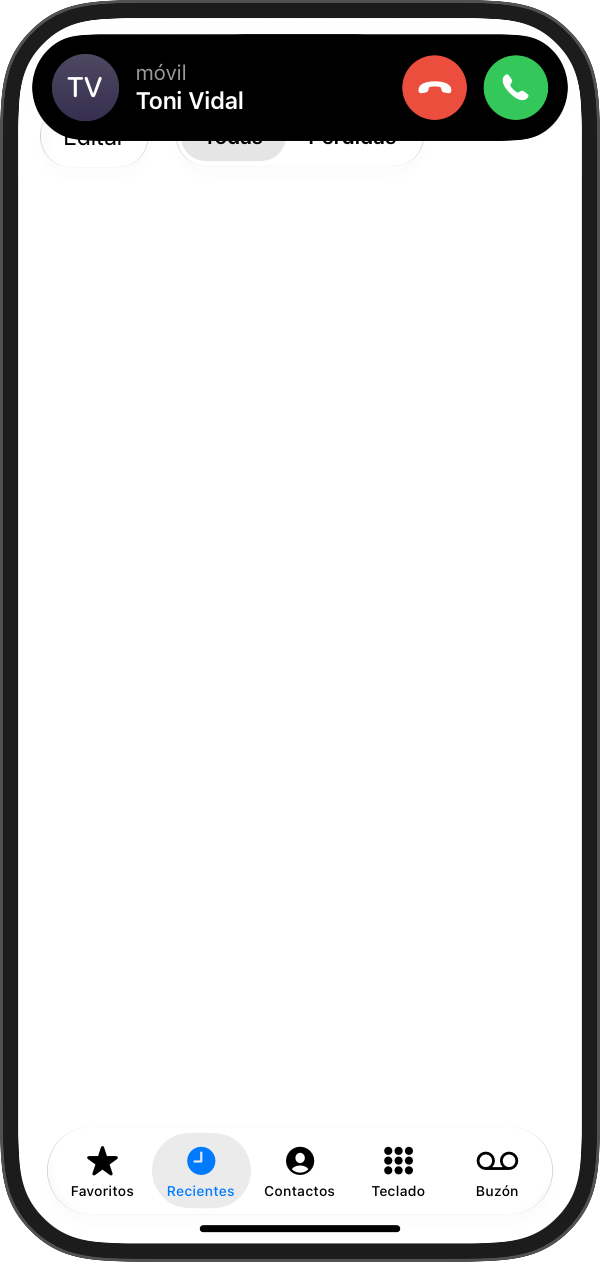
Prepare conversations, incoming calls and notifications with the names and content the scene calls for. These are prop screens, not real messages or telephone calls.
Let a touch trigger the next phase, or use scripted typing to show the intended text while the actor performs the interaction.
Use a locked prop view to keep production controls out of the actor’s way. Chroma screens and tracking marks support shots that need a replacement in post.
SetKitCore reads PDF, Final Draft and Fountain files. Propp proposes screen scenes, contacts and starting content for you to review before importing.
(coming soon, without a release date)
Files & privacy
Projects and their media use iCloud Drive to move between your devices. Live prop control uses a local connection rather than an internet control service. The Apple Watch remote sends its cues through the companion iPhone.
A question about Propp? Tell us what you need it to do in your working day.
support@parentheticalapps.com(a person at the other end)